
The new Recreation Online Portal can be found at munclare.perfectmind.com or by using our website menus to navigate to "Activities and Registration" under the Recreation Menu.
How to Create an Account
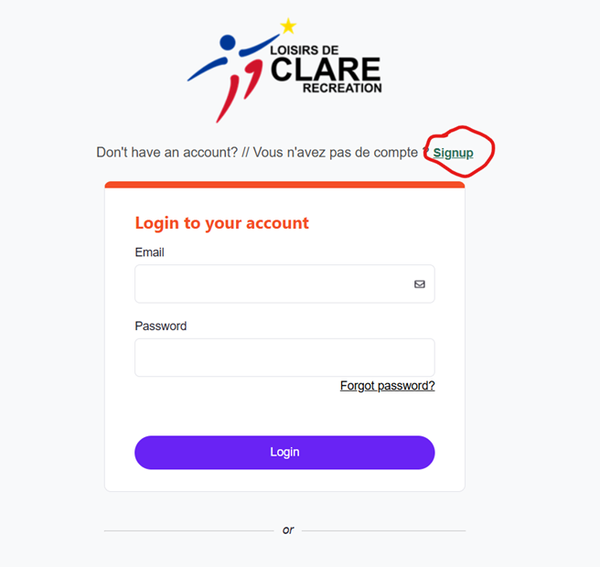
- When given the option to log in, click “Sign Up”
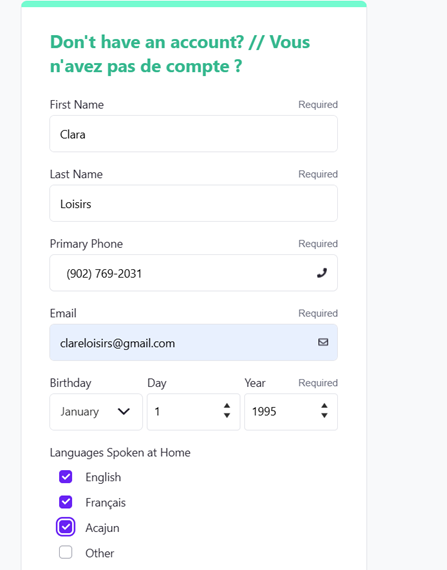
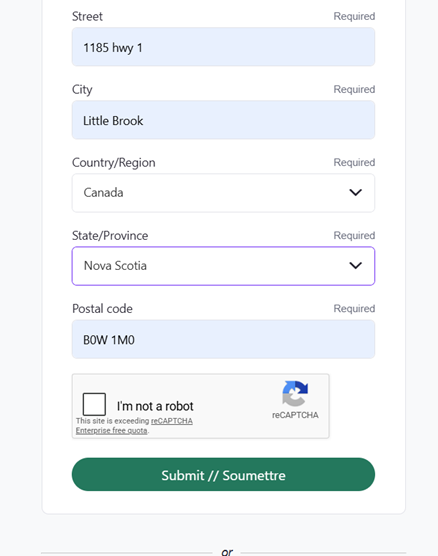
- Fill in all your details. Please make sure these details are accurate for you personally- you will be given the chance to add children and other family members once your account has been created. Once all your details are filled in, click “Submit”
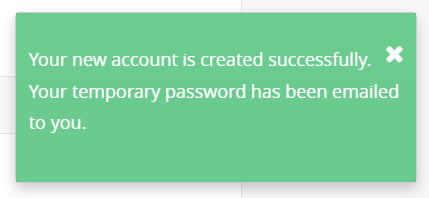
- You will automatically be signed in to the Client Page and a temporary password will be emailed to you. A pop-up will appear that you have created your account successfully and a temporary password has been sent to your email inbox.
- To log in again, find the temporary password sent to your email. Use that password to sign in- it will prompt you to create a new password. Set it as anything you will remember! To reset your password, call Staff at 902-769-2031.
How to Add your Family to your account
- Sign in to your online portal account.
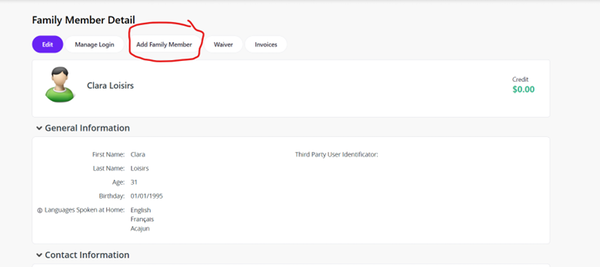
- From the Client Information Page, you will see all your details as well as the button “Add a Family Member”.
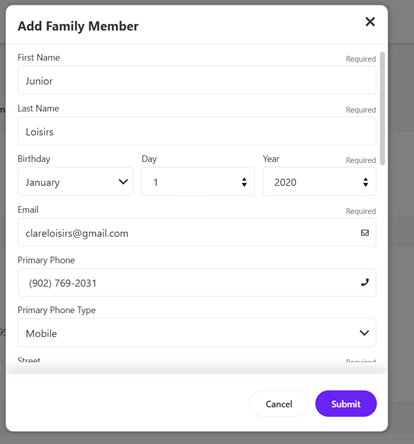
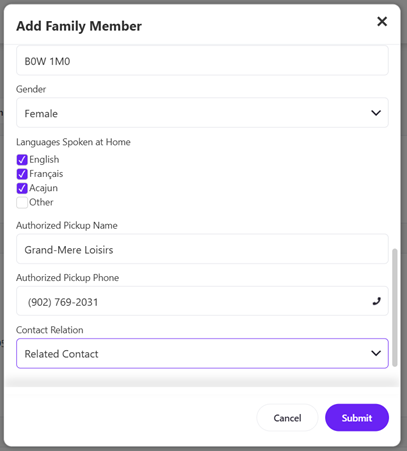
- Once clicked, this will open a pop-up screen where you can add a family member- please make sure to add accurate details. Please especially sure to select the proper age, address, and phone number. There will be the option to add an “Authorized Pickup Person”- this is for children under 16 and is used in child care programs. You will have the opportunity to add more Authorized Pickup people once the account is created.
- Repeat the process to add as many family members as needed. To link existing logins to your family (For example if Dad has created an account, and Mom has created an account, and you would like them to be included under the same family), please contact Staff 902-769-2031.
How to Register for an Event or Activity
Once you have logged into the portal, you will have the following menu options:

My Info- brings you to your contact details
Activity Registration- Is where you see all the available activities for registration
Community Calendar- Navigates away from the portal to the municipal website with our community calendar.
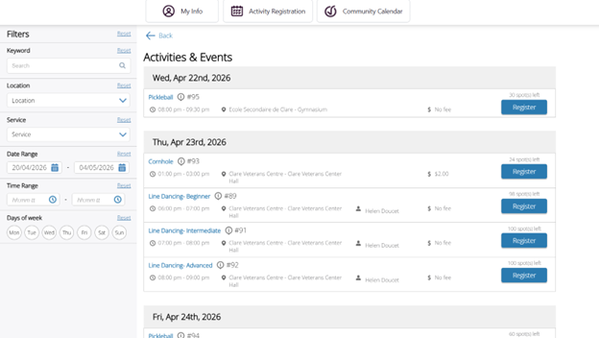
1. Search for your event
The activities are separated into “general interest” such as community events, social activities, and cultural programs and “Movement & Sport” for all of our programming that gets your body moving!
You can select the option you’re interested in to browse all of the events
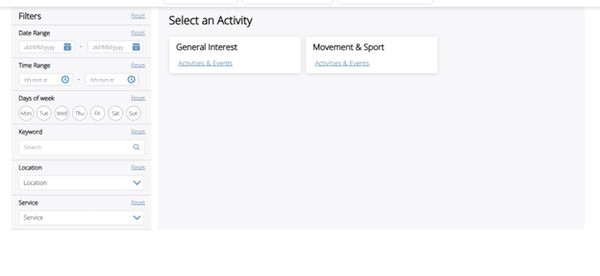
You can also search by:
Date rage: Fill in the dates your searching for to return all the activities within that time period
Time range: Filling in the times you are interested in will produce all the activities that qualify.
Days of week: Select specific days of the week to narrow down your search
Keyword: Type in your activity such as “pickleball” to see all sessions
Location: You can select a certain venue if to narrow down your search
Service: This will allow you to select specific event categories such as “court sports” or “bus trips”
2. Select your event:
Scroll through all the options to find an activity that interests you! By clicking “Register” you will be brought to the event details page with all the activity information
3. Register for your event
Once you have clicked on “register”, you will be directed to the event page.
The event page has the date, time, details, location, and also shows you similar events (in the example shown, pickleball is weekly on Wednesdays, so the future pickleball sessions also appear to show you similar events that may interest you). Read through the details to be sure you have selected the right event & day/time before continuing.
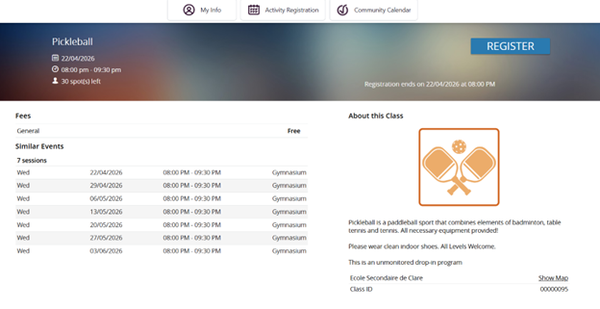
Once you click “Register” on the top right, you will be asked who you are registering for. All family members on your account will appear if they are eligible (Please note some activities have age restrictions and any family members not eligible for the activity will not appear). You will be able to select as many family members at a time as you would like.
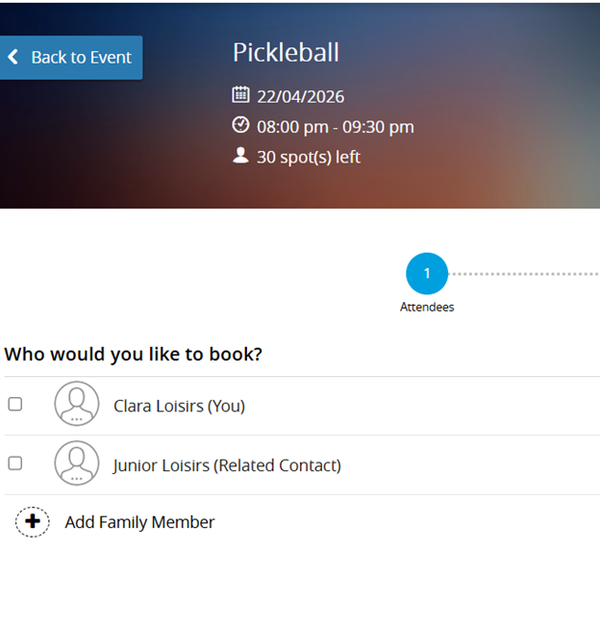
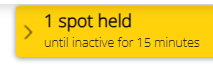
As soon as you have selected the participants, a countdown will appear on your screen- All spots are held for 15 minutes.
4. Paying for your Registration
You will be brought automatically to the payment screen.
For free events, it will simply ask you to check out and will not ask for any payment information.
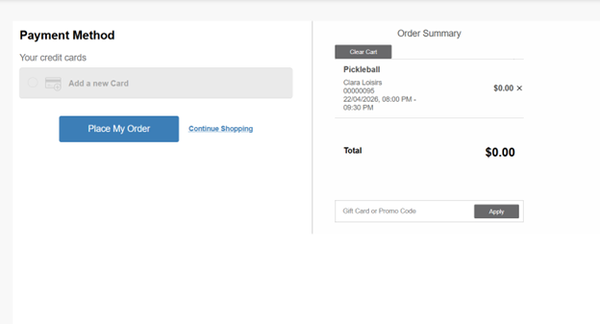
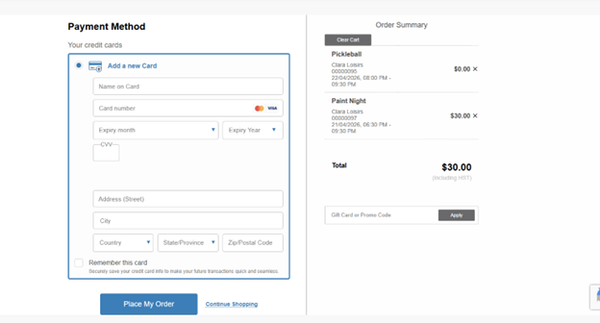
If you would like to add more registrations to your cart, simply return to “activity registration” from this screen and add the other registrations. Please keep in mind that spots are only held for 15 minutes.
For paid events, you will be asked to fill in your credit card information in order to check out. Some events may have payment plans associated with them- if you are in need of a payment plan and none are available, please contact 902-769-2031.

5. Finalizing Registration
Once you have registered and paid, your confirmation screen will show.
It gives the name registered, and provides an “add to calendar” option for you to sync the event with your personal calendar.
You will automatically receive an email with your Receipt, and you Registration Confirmation- Please read the registration confirmation as details for participants and activity instructions can be included.
If you would like, you can print a copy of the registration and the receipt from the confirmation page.
Viewing My Registrations
If you’d like to see what you have on your upcoming schedule, navigate to “My Info” and scroll down to the “Schedule” section to see what is upcoming!